
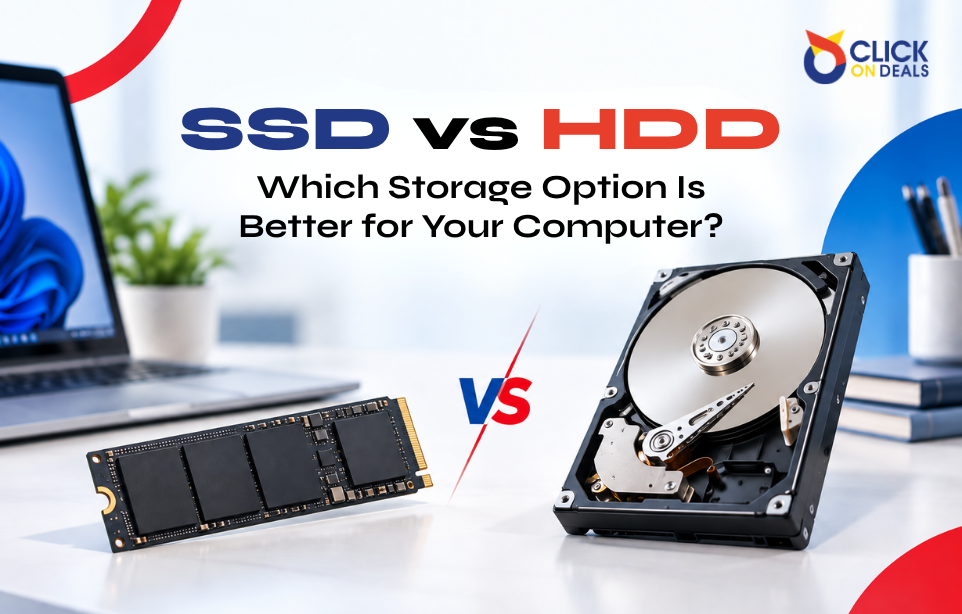
When buying a computer, laptop, or server, storage is one of the most important things to consider. You may have seen terms like SSD and HDD while comparing different devices, but what do they actually mean?
Both storage types are used to save your files, applications, operating systems, and other data. However, they work in different ways and offer different levels of speed, durability, and storage capacity.
Understanding the difference between an SSD and HDD can help you choose a computer that matches your needs and budget.
What Is an HDD?
HDD stands for Hard Disk Drive. It is a traditional storage device that uses spinning magnetic disks to store data. A small mechanical arm reads and writes information on these disks.
HDDs have been used in computers for many years and are still popular because they can provide large amounts of storage at a relatively low cost.
For example, an HDD can be a practical choice when you need plenty of space for documents, videos, backups, or other large files without spending too much.
What Is an SSD?
SSD stands for Solid State Drive. Unlike an HDD, an SSD does not have moving mechanical parts. It stores data using flash memory.
Because there are no spinning disks or moving components, SSDs can access data much faster. This can make a noticeable difference when starting a computer, opening applications, transferring files, or loading large programs.
Many modern laptops and business computers now use SSD storage as their main drive.
SSD vs HDD: What Is the Difference?
The biggest difference between an SSD and HDD is how they store and access data.
An HDD relies on mechanical movement, while an SSD uses electronic flash memory. This difference affects several areas, including speed, durability, noise, and power consumption.
Speed
SSD storage is generally much faster than HDD storage. A computer with an SSD can usually start up quickly and open applications with less waiting.
HDDs are slower because the drive needs to physically move its internal components to access data.
If you regularly multitask or use applications that need quick access to files, an SSD can provide a smoother experience.
Durability
Since HDDs contain moving parts, they can be more vulnerable to physical shocks and vibrations. SSDs have no moving parts, which makes them better suited to situations where a computer may be moved frequently.
This is one reason SSDs are particularly useful in laptops.
Storage Capacity
HDDs are available in large storage capacities and can be a cost-effective option when you need a lot of space.
SSDs are also available in high capacities, but larger SSDs can cost more than comparable HDDs. Therefore, an HDD may still make sense for users who need extensive storage for a large collection of files.
Power Consumption
SSDs generally use less power than traditional HDDs. This can be useful in laptops because lower power consumption may help support longer battery life.
The actual battery life of a laptop still depends on several other components and how the device is used.
Noise
HDDs contain spinning disks and moving components, so they can produce some mechanical noise while operating.
SSDs have no moving parts and operate silently.
Which One Is Better for a Laptop?
For most modern laptops, an SSD is a practical choice. Faster startup times, quicker application loading, silent operation, and better resistance to movement make SSDs well suited to portable computers.
If you use a laptop for university, office work, content creation, browsing, or everyday multitasking, an SSD can make the system feel more responsive.
However, an HDD can still be useful when you need additional storage for large files and want to keep costs lower.
Which One Is Better for a Business Computer?
Business users often work with multiple applications, documents, browsers, and communication tools at the same time. An SSD can help reduce waiting times when starting the system and opening frequently used programs.
For businesses that store large amounts of data, an HDD can also be useful as additional storage or for certain backup needs.
The right choice depends on the type of work, required capacity, and available budget.
SSD or HDD for Servers?
Servers have different storage requirements from ordinary computers. Performance, capacity, reliability, workload, and data protection all need to be considered.
SSDs can be useful for workloads where fast data access is important. HDDs can provide large amounts of storage and may be suitable for applications where capacity is more important than maximum speed.
In some systems, businesses may use a combination of both storage types to balance performance and capacity.
Can You Use Both SSD and HDD?
Yes. A computer can use both types of storage if the hardware supports the required drives.
For example, an SSD can be used for the operating system and frequently used applications, while an HDD can provide additional space for documents, media, backups, or other large files.
This combination can provide a practical balance between speed and storage capacity.
How to Choose the Right Storage
Before buying a computer, consider how you plan to use it.
If speed and responsiveness are your main priorities, an SSD is usually the more suitable option. If you need a large amount of storage at a lower cost, an HDD may be worth considering.
You should also check the storage capacity, interface, device compatibility, and upgrade options rather than choosing based on SSD or HDD alone.
Final Thoughts
Both SSDs and HDDs have their own advantages. SSDs offer faster performance, silent operation, and better resistance to physical movement, while HDDs can provide large storage capacities at a lower cost.
For everyday laptops and business computers, an SSD can provide a noticeably faster experience. For large storage requirements, an HDD can still be a useful and economical option.
Understanding these differences before buying can help you choose storage that fits your actual needs instead of paying for features you may not use.



1 Comment
Temporibus ex quia unde. Vitae beatae magni amet rerum deleniti eos assumenda. Animi mollitia sapiente necessitatibus iste nisi omnis in est. Voluptatem dolores repellat sunt possimus sequi. Ratione dolores labore eum provident cum. Harum sunt explicabo laboriosam aliquid. Suscipit velit nisi quam omnis. Placeat voluptates doloremque ut quasi necessitatibus iusto animi. Natus eum et nesciunt. Possimus rerum asperiores quia illum dolorem.